
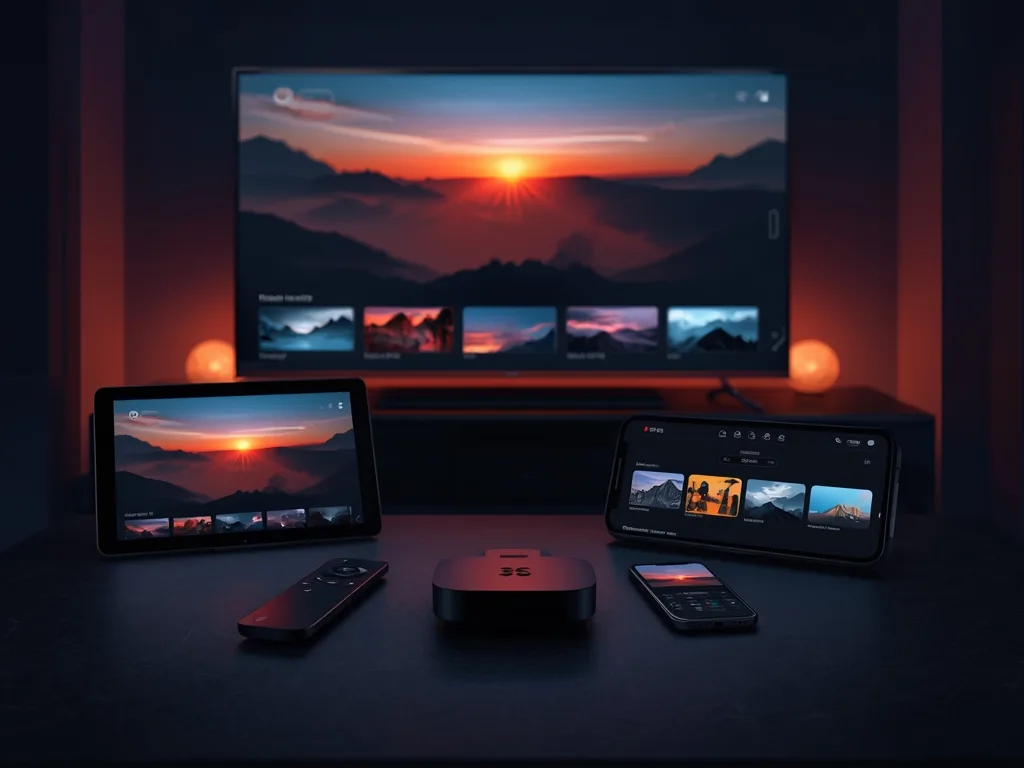
IPTV on Apple TV, iPhone and iPad: What Works
Apple devices make excellent IPTV screens. An Apple TV box gives you a fast, clean interface on the living room television, while an iPhone or iPad turns the same subscription into portable live TV for travel, the kitchen or a hotel room. Because Apple keeps tight control of its app store, the setup is straightforward, but it works a little differently from Android. This guide covers what you need and how to get good results.
The Apple Devices Involved
- Apple TV, the set-top box running tvOS, which connects to a TV over HDMI
- iPhone, running iOS
- iPad, running iPadOS
You can see the official overview of Apple's streaming box on the Apple TV support page. The key point for IPTV is that all three platforms get apps from the App Store, and an app built for one often has a matching version for the others, though not always. Check that your chosen player lists every device you plan to use.
Step by Step: Setting Up on Apple TV
- Connect the Apple TV to your TV and network, preferably by Ethernet if your model has a port
- Open the App Store on the Apple TV and search for the IPTV player your provider recommends
- Download the app, open it and choose to add a playlist or sign in
- Use your iPhone as a keyboard: when the Apple TV asks for text, a prompt appears on a nearby iPhone, letting you type or paste the details
- Wait for the channels and guide to load
The iPhone keyboard feature saves a lot of effort, particularly for a long M3U link. If your player supports an activation code or a web-based setup page, that is the easiest option of all.
Setting Up on iPhone and iPad
On a phone or tablet, open the App Store, install the player and sign in with the same details you used on the TV. The same subscription can usually run on several devices, but remember that your plan limits how many streams can play at once. If two family members watch on separate screens at the same time, you need enough connections for both. Our multi-device streaming guide explains how this works,, so size your plan to the screens that run together.
On an iPhone, use Wi-Fi at home to avoid burning through mobile data. Watching live video on a mobile connection can use a lot of data per hour, so check your plan or limit the quality before streaming on the move.
Using AirPlay and Screen Mirroring
AirPlay lets you send video from an iPhone or iPad to an Apple TV or to a compatible smart TV. It is handy when a TV has no suitable IPTV app, because the phone does the decoding and the TV just displays it. The trade-offs are that the phone must stay on and connected, notifications can interrupt, and the picture depends on both devices sharing a good network. For long viewing sessions, installing the app on the Apple TV itself is more reliable.
Getting the Best Quality on Apple Hardware
- Use Ethernet on the Apple TV if possible; it removes Wi-Fi variables
- Open the Apple TV's video settings and select the highest resolution your TV supports, and make sure HDR or Dolby Vision is only enabled if your TV handles it
- Turn on the option to match frame rate and dynamic range for smoother sport and film playback
- Keep tvOS, iOS and the player app updated
- Close background apps on iPhone and iPad before a long live match
A 4K Apple TV can only show 4K if the channel itself is broadcast at that quality, and your connection must carry it. As a rough guide, aim for 25 Mbps or more per 4K stream and at least 15 Mbps for Full HD.
Troubleshooting Apple Devices
The app says the playlist cannot be loaded
Check for typos, then try the same details on another device. If they work elsewhere, delete the playlist in the app and add it again. If not, contact support through the contact page.
Video stutters on Apple TV
Restart the box, test the connection and switch from Wi-Fi to a cable. Our buffering checklist covers the rest.
The app is missing from the App Store
Availability can differ by country and over time. Look for an alternative that supports your provider's login format, and ask your provider which apps it has tested.
Apple Devices and Voco TV
Voco TV subscribers on Apple devices use a compatible player with the details we provide, and the same account can be used across your iPhone, iPad and Apple TV within your plan's limits. You can look at the pricing page for plan options, or ask for a trial through the contact page to test on your own devices first.
Frequently Asked Questions
Do I need an Apple TV box if my TV already has apps?
Not necessarily. If your TV has a suitable player and runs it well, you may not. An Apple TV is worth considering if your TV is slow, has no suitable app, or you want a consistent interface across Apple devices.
Can I watch on an iPhone away from home?
Yes, with a good connection, though live video can use a lot of mobile data. Use Wi-Fi where possible and lower the quality on a limited plan.
Does AirPlay reduce quality?
It can, depending on the app, the network and the devices involved. For long viewing, installing the player directly on the Apple TV is more reliable.
Are iOS and tvOS apps the same?
Not always. Some developers offer one app for all Apple devices, others offer separate apps or skip a platform entirely. Check the store listing for each device you own.
Final Thoughts
Apple TV for the main screen, iPhone and iPad for everything else, all signed in with one subscription: it is a neat, reliable setup. Pick a player that exists on every device you own, use your iPhone as a keyboard, wire the Apple TV if you can, and remember your connection limit.
Ready to cut the cord?
Join 50,000+ subscribers streaming live TV, movies and series on premium IPTV in HD & 4K — cancel anytime, no contracts.