
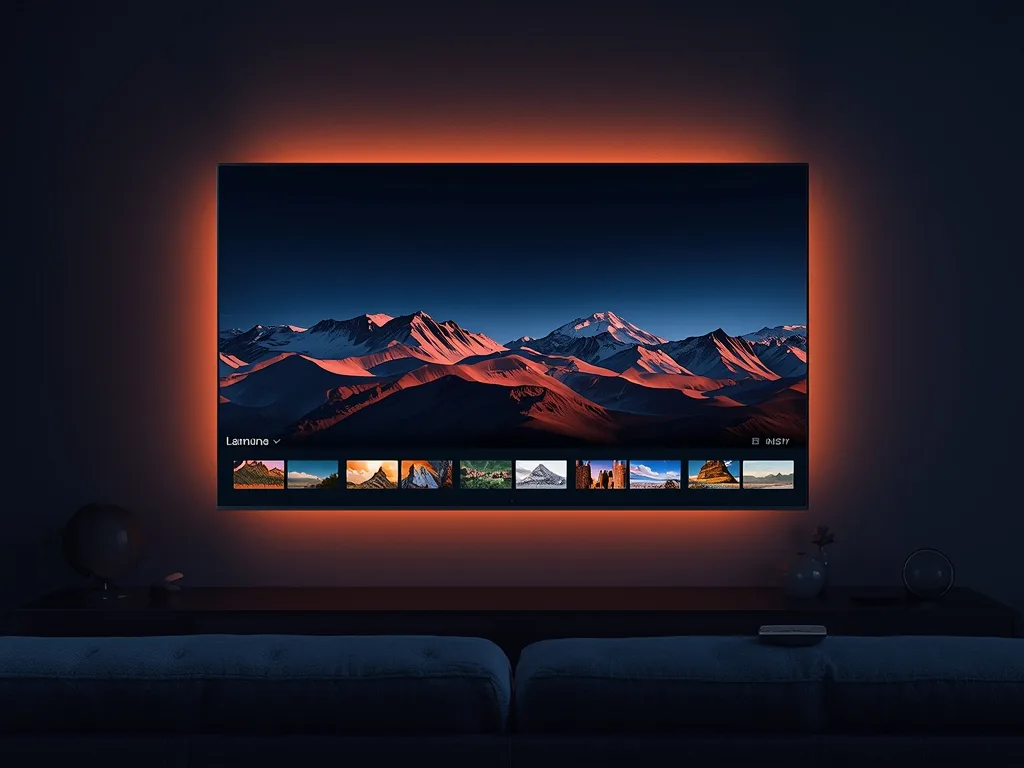
LG televisions run webOS, a polished smart TV platform with a pointer-style remote and a bar of apps along the bottom of the screen. It is one of the friendliest systems for streaming, and many LG owners use it for IPTV. As with other manufacturer platforms, you need an app that exists for your particular TV, so a little preparation saves a lot of frustration. This guide covers the setup, the settings that matter and the fixes for the usual problems.
What Makes webOS Different
webOS apps come from the LG Content Store, which you open from the home launcher. Apps are built for webOS specifically and can differ by region and by the TV's model year. Newer sets get newer versions of apps and system software for longer; older sets may stop receiving updates, and some apps then disappear from the store for those models.
The upside of webOS is a quick, tidy interface and a remote with a pointer, which makes entering long text slightly less painful. The downside is that sideloading is not simple for ordinary users, so you generally rely on whatever the store offers. If you want a wider choice of players than the store gives you, the standard fix is an external streaming device, described below.
Step by Step: Install a Player on LG webOS
- Press the Home button on the LG remote to open the launcher
- Open the LG Content Store and use search to look for the IPTV player your provider recommends
- Select Install and wait for the app to appear in your launcher bar
- Open the app and choose the option to add a playlist, sign in or activate the device
- Enter your details, or use the device code and the player's website if it offers that, then wait for channels and the guide to load
Tip: many webOS players show a device identifier on the TV that you register on a website from your phone or computer. It is much quicker than typing a long link with the remote, and it avoids the typos that cause login errors.
Check Your Network First
LG TVs have good Wi-Fi hardware, but the signal in the room where the TV sits matters more than the specification. Go to the TV's network settings and confirm it is connected to the 5GHz band if your router offers one. If the TV has an Ethernet port, a cable is better still, especially for live sport and 4K. Run a speed test on a phone in the same spot as a rough check, and aim for at least 15 Mbps for Full HD and 25 Mbps or more for 4K.
Picture and Sound Settings That Help
LG panels, especially OLED models, can look wonderful with the right settings. Choose Cinema or Filmmaker mode for series and films, and a brighter preset for daytime sport. Disable overly aggressive smoothing for live football, where it can create a soap-opera look and sometimes small artifacts. For audio, use the TV's output settings to match your soundbar or receiver; if you get silence on specific channels, switching the digital audio format to PCM usually helps.
Remember that quality is capped by the source. A channel broadcast in HD will not magically become 4K, however good the TV is.
If the App You Want Is Not Available
- Add a Fire TV Stick or an Android TV or Google TV box through HDMI; our Firestick guide walks through that route
- Use an Apple TV box if you prefer the Apple ecosystem
- Cast from a phone or tablet for occasional viewing
- Connect a laptop over HDMI for a simple, flexible setup
The external-device route is also useful because streaming sticks are replaced cheaply every few years, whereas a TV is a long-term purchase that can age out of app support.
Troubleshooting on LG TVs
The app will not open or closes immediately
Restart the TV from the settings menu, update the TV software and then reinstall the app. If the app was removed from the store for your model, switch to a streaming stick.
Playback stutters
Lower the stream quality in the app, move to a wired connection and restart the router. Our buffering guide lists the remaining checks in order.
Login or playlist errors
Compare each character with the details you were sent and watch for spaces added by copy and paste. If everything looks right and it still fails, test the same details on another device, then contact your provider through the contact page.
Using Voco TV on LG
Voco TV subscribers on LG sets use a compatible webOS player or an external device with the details we send with the subscription. Our FAQ covers common questions, and you can request a short trial from the contact page to test your exact model before choosing a plan on the pricing page.
Frequently Asked Questions
Can I sideload apps onto an LG webOS TV?
It is possible with developer tools, but it is not a normal consumer process and is not worth the effort for most people. A streaming stick gives you the same flexibility with far less hassle.
Which LG models work best for IPTV?
Newer models receive updates for longer and have stronger processors, so they handle large channel lists better. That said, the key question is whether a suitable player exists in the LG Content Store for your specific model year.
Why does live sport look strange on my LG TV?
Often it is motion smoothing. Turn the feature down or off in the picture settings and compare. If the problem is stuttering rather than over-smooth motion, check your network instead.
Do I need to pay extra for the app?
Some player apps are free and some charge for a premium tier or activation. Test the free version with a trial of your service before paying for anything, and read the store listing carefully.
Final Thoughts
LG webOS is a pleasant platform for IPTV when the right app exists for your model. Install a player from the Content Store, use the device-code login if available, favour a wired or 5GHz connection and keep the TV updated. When the store comes up short, a streaming stick is a low-cost way to get everything working.
Ready to cut the cord?
Join 50,000+ subscribers streaming live TV, movies and series on premium IPTV in HD & 4K — cancel anytime, no contracts.