
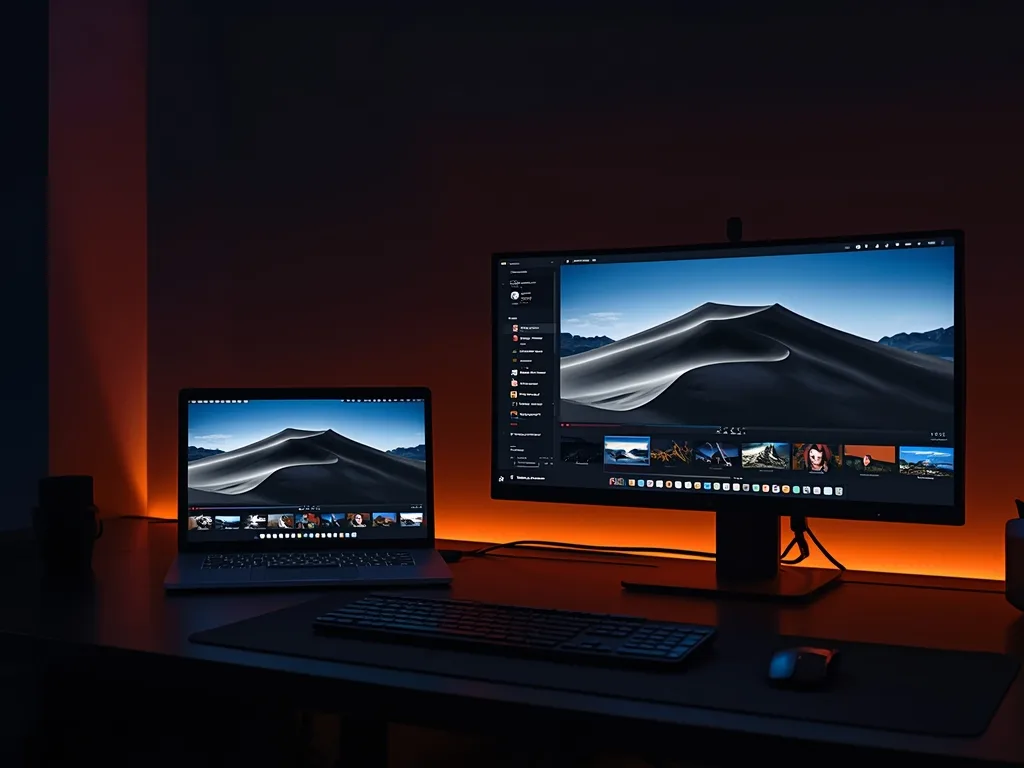
A computer is the most flexible IPTV device you can own. Windows PCs and Macs can run several different players, handle very long playlists without slowing down, and connect to a TV over HDMI when you want the big screen. They are also ideal for troubleshooting, because you can test a subscription quickly before setting up a TV or stick. This guide explains the options and walks through a basic setup.
Two Ways to Watch on a Computer
A desktop player app
This is the best choice for regular viewing. A desktop player loads your playlist or login, shows the channels in a list and usually includes a program guide. The most widely known free option is VLC, an open-source player available for Windows, macOS and Linux from the official VideoLAN website. VLC plays an M3U playlist directly, though its interface is more basic than apps built specifically for IPTV, with no polished guide.
A web-based player
Some services offer a browser-based player, which needs no installation. It is the fastest way to try something, but features and compatibility vary by provider. If your provider supports one, it is a handy backup.
Setting Up VLC With an M3U Playlist
- Download and install VLC from the official website only; other download sites sometimes bundle unwanted software
- Open VLC and choose Media, then Open Network Stream
- Paste your M3U playlist link into the box and select Play
- Open the playlist view (View, then Playlist) to see the full channel list and search by name
- Double-click a channel to start playing
VLC works, but a big playlist can take a while to load and there is no guide with a grid view. People who watch daily often prefer a dedicated IPTV player on the computer, with channel groups, favourites and an on-screen schedule. Free media players are fine for a quick check, but daily viewers usually want more.
Treat your playlist link like a password. It usually contains your account details, so do not post it in public, screenshots or support forums.
Connecting Your Computer to a TV
If you want to watch on a television, an HDMI cable from the laptop to the TV is the simplest method. On Windows, press the Windows key and P to pick Duplicate or Extend; on a Mac, open the display settings and choose the TV. Set the resolution to match the TV and, for smooth video, set the refresh rate to 60Hz or the closest equivalent. For a permanent setup, a small desktop computer or a mini PC placed behind the TV works well and can run for years.
Wireless options like screen mirroring are convenient, but they add delay and can drop frames during fast live sport. A cable is more dependable.
Performance Tips for Windows and macOS
- Use a wired connection when the computer is near the router; a USB-to-Ethernet adapter is cheap for laptops
- Close heavy programs, such as large downloads or cloud backups, while streaming
- Enable hardware acceleration in the player's video settings so the graphics chip does the decoding
- Keep your graphics drivers on Windows and macOS itself up to date
- Use a wired or well-placed router so live matches do not stall
If the video stutters, work through the steps in our buffering checklist.
Security and Safety on a Computer
Because a computer holds your personal files, be more careful with software than on a streaming stick. Download players only from the developer's official site or a trusted app store, avoid cracked or modified apps, and keep your antivirus and system updates switched on. Be wary of any site that asks you to install a special codec or browser extension just to watch a stream. If you are unsure whether a service itself is trustworthy, read is IPTV legal in the US for the questions to ask.
Troubleshooting
The playlist loads but nothing plays
Test the same link on another device. If it works there, the problem is likely your player's network settings or a firewall. If it fails everywhere, re-check the link for typos and contact support through the contact page.
Channels play with no sound
Check the audio output device in the player and the operating system, and try another audio track if the channel has more than one.
Using Voco TV on a Computer
A Voco TV subscription can be used on a computer within your plan's connection limit; ask us for the right setup details for your subscription. If you want to test before deciding, request a trial through the contact page, and see the pricing page for plans.
Frequently Asked Questions
Is VLC enough for daily IPTV viewing?
It works for testing and basic viewing, but it lacks a grid-style guide and good channel management. People who watch every day often prefer an app built for live TV.
Can I watch on a laptop and a TV at the same time?
Only if your plan has enough connections, because each playing stream counts. A laptop on one stream and a TV on another needs two connections.
Will an old computer work?
For HD, often yes. For 4K, you need a reasonably modern machine with hardware video decoding and a display that supports it.
Do I need a graphics card?
Not a dedicated one. Modern integrated graphics handle video decoding well, as long as hardware acceleration is turned on and the drivers are current.
Final Thoughts
A PC or Mac is the best place to test and troubleshoot IPTV, and a very capable one to watch on. Start with VLC for a quick test, move to a dedicated player if you want a proper guide, connect to the TV by HDMI when you want a big screen, and keep your downloads limited to official sources.
Ready to cut the cord?
Join 50,000+ subscribers streaming live TV, movies and series on premium IPTV in HD & 4K — cancel anytime, no contracts.